If we are moving your website to our servers, there is one job only you can do: point your domain name at them. We host websites on WP Engine, a hosting company that specialises in WordPress. When your new website is ready, we send you a short list of DNS records to add where your domain is managed. This guide shows you how to add them, one step at a time.
It takes about ten minutes. You do not need to be technical and you do not touch your website. You change a few lines in your domain settings, and your email carries on as normal as long as you leave your email records alone. We show you which ones those are.
We checked every step against WP Engine’s own help pages and the help pages of the registrars below in November 2026. Screens change often, so if a button is named slightly differently, the step still applies.
What a DNS record is, in plain English
Your domain name, such as yourbusiness.co.uk, is just a name. DNS is the internet’s address book. It tells browsers which server holds your website when someone types your name in. Each line in that address book is called a DNS record.
When we move your website, the only thing that changes is where the address book points. Your domain stays yours, in your account, with the company you bought it from. We never take it over.
Every record has three parts:
- Type. What kind of record it is, such as A, CNAME or TXT.
- Name. Some registrars call it Host. It says which address the record is for. Your main address is shown as @ and the www version as www.
- Value. Some registrars call it Points to or Content. It is where the address should go, or the code to match.
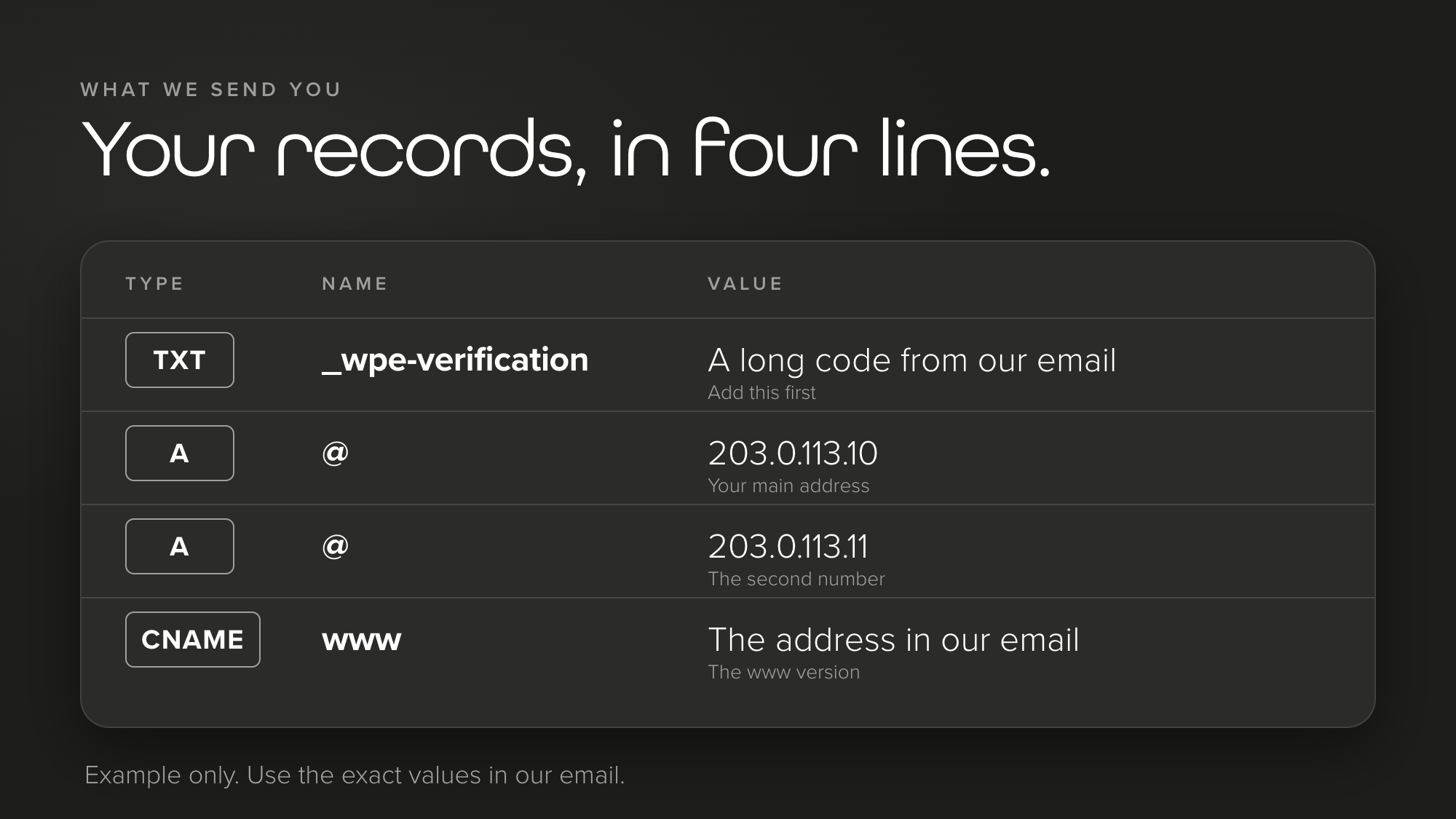
We email you the exact records for your website. These are the types you may see:
- A TXT record. A one-off code that proves to our hosting company that you own the domain. WP Engine asks for it to be named _wpe-verification. We ask you to add this first. It does not change your website.
- Two A records. Both are named @. Each points to a different number that belongs to WP Engine. Together they send visitors who type your main address to your new website.
- A CNAME record. Named www. It sends the www version of your address to the same place.
What you need before you start
- Our email with your records. Use the numbers and codes in it, not the examples on this page.
- The login for the company that manages your domain’s DNS. That is often, but not always, the company you bought the domain from. Step 1 shows you how to check.
- About ten minutes. Add the verification record whenever you like, but please wait for our go-ahead before you change your main address and www, so your visitors are not sent to a website that is not ready.
- A way to take a screenshot, or a pen and paper, to record what is there now.
The six steps
- Find out where your DNS is managed
- Sign in and open your DNS settings
- Take a copy of what is there now
- Add the verification record
- Change your main address and www when we say go
- Check it and tell us
Step 1: Find out where your DNS is managed
Records have to be added in the place that controls your domain’s DNS. It is not always the company you bought the domain from. It is whoever your domain’s nameservers point to.
To check, go to whatsmydns.net, type in your domain, choose NS from the drop-down list and select Search. The names that come back tell you who runs your DNS. This table translates the most common ones:
| If the names end with | Your DNS is managed at |
|---|---|
| domaincontrol.com | GoDaddy |
| 123-reg.co.uk | 123 Reg |
| ui-dns.com, ui-dns.de, ui-dns.org or ui-dns.biz | IONOS |
| registrar-servers.com | Namecheap |
| ns.cloudflare.com | Cloudflare |
| Something else | The company named in the address, such as your old web host. Tell us the names and we will work it out with you. |
If your domain is on Cloudflare, tell us before you change anything. Cloudflare can sit in front of a website, and that changes how the records should be set. We will tell you what to choose.
Step 2: Sign in and open your DNS settings
Sign in to your account at the company from step 1 and find your domain. Look for a section called DNS, DNS records, Manage DNS or Advanced DNS. This table shows where it is at the most common companies, with a link to each one’s own help page:
| Company | Where to click | Their help page |
|---|---|---|
| GoDaddy | Sign in to your Domain Portfolio, select the domain, then select DNS. Select Add New Record. | Add an A record and add a CNAME record |
| 123 Reg | In the Control Panel, select Manage All next to Domains, choose your domain, then select DNS and Add New Record. | Set up a CNAME record |
| IONOS | Open Domains & SSL, select the three dots under Actions, then DNS, then Add record. | Changing an A record |
| Namecheap | Open Domain List, select Manage, open the Advanced DNS tab and select Add New Record. This only shows if your domain uses Namecheap’s own DNS. | Set up host records |
| Cloudflare | Open your domain, go to DNS, then Records, and select Add record. | Create DNS records |
Two small things that catch people out. In the Name box, type only the part before your domain, such as www or @. IONOS and Namecheap both warn that typing the whole domain doubles it up. And your registrar may ask for a security code to confirm a change. That is normal.
Step 3: Take a copy of what is there now
Before you change anything, take a screenshot of the whole list of records, or write them down. It is your safety net. If anything goes wrong, you or we can put things back exactly as they were.
Then look at the types. You will change a few records in step 5. Everything else stays as it is.
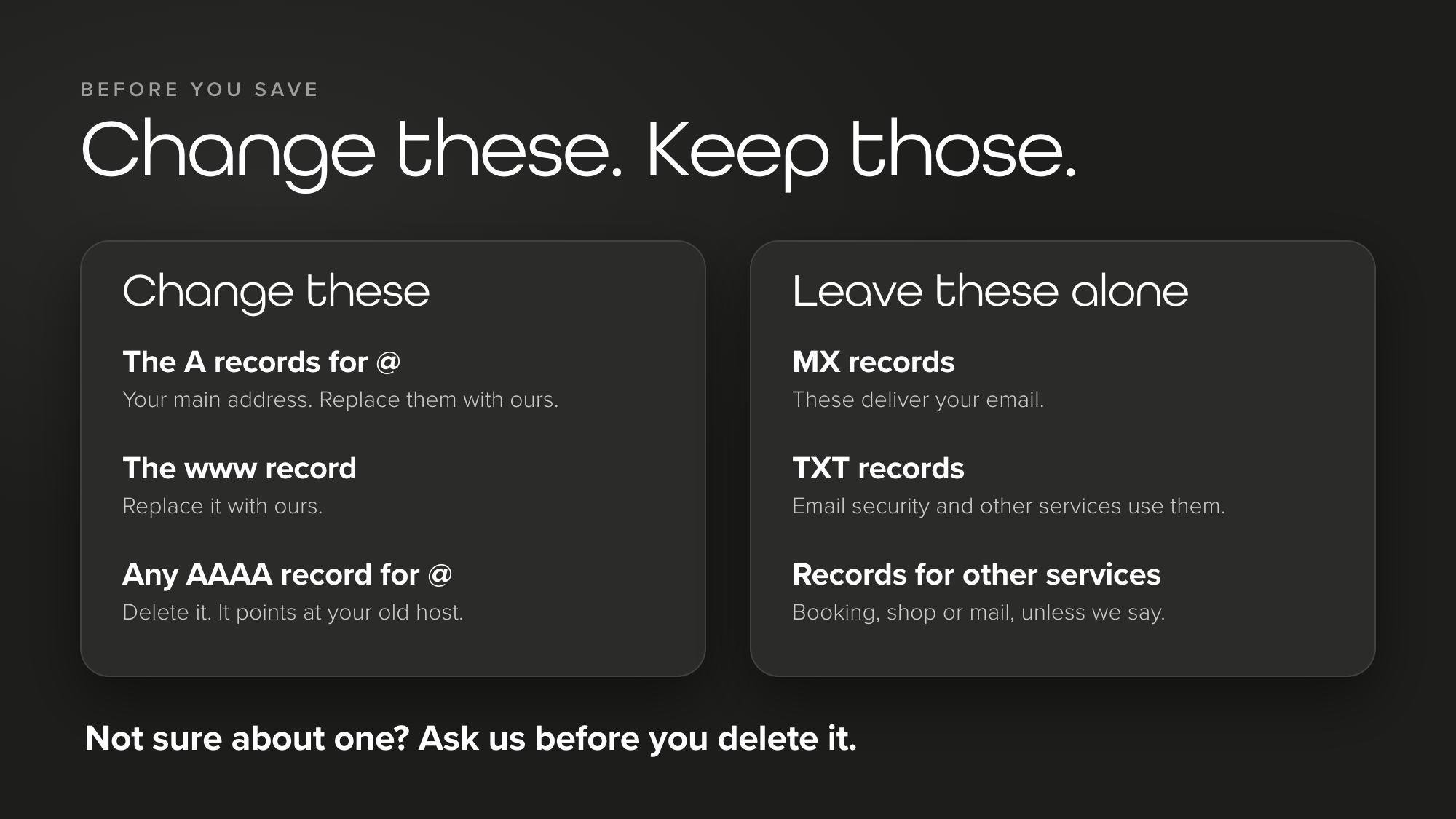
The one to be most careful with is the MX record. It is the line that delivers your email, so never delete it. WP Engine’s own advice is to be careful about changing or deleting any other records that already exist, especially MX records. Records for services such as Google Workspace, Microsoft 365, a booking system or an online shop also stay.
Step 4: Add the verification record
We send you a TXT record. Add it as a new record with these details:
- Type: TXT
- Name: _wpe-verification
- Value: the long code from our email, pasted exactly as we sent it
- TTL: leave it on the default
Select Save. WP Engine uses this record to check that the domain belongs to you. It does not change your website or your email, so you can add it as soon as we send it, even days before the main change. WP Engine says verifying early helps reduce downtime when the website moves.
Let us know when it is saved. We check it from our side.
Step 5: Change your main address and www when we say go
This is the step that moves your website. Please wait until we tell you the new website is ready, then follow the order below.
Your main address (@)
- Find the A records where the Name is @. Some registrars show it as blank or as your domain name. These point to your old host. Delete them.
- Find any AAAA record for @ and delete that too. WP Engine says its network does not currently support IPv6 and that these records can get in the way of your security certificate.
- Add a new A record. Name: @. Value: the first number from our email. Select Save.
- Add a second A record. Name: @. Value: the second number from our email. Select Save.
The www version
- Find the record where the Name is www. If it is an A record or an old CNAME, delete it. A CNAME cannot share a name with another record, which is why the old one has to go first.
- Add a new CNAME record. Name: www. Value: the address in our email. At 123 Reg, end the Value with a full stop. Select Save.
Here is what changes and what does not:
| Record | Name | What you do |
|---|---|---|
| A | @ | Delete the old ones. Add the two from our email. |
| AAAA | @ | Delete it, if there is one. |
| A or CNAME | www | Delete the old one. Add the CNAME from our email. |
| MX | Usually @ | Leave it alone. It delivers your email. |
| TXT and others | Various | Leave them alone, unless we tell you otherwise. |
Your email may show slightly different records if your registrar supports another way of pointing the main address, such as a CNAME. Follow our email if it differs from this page.
Step 6: Check it and tell us
Tell us by email at hello@stauntonrook.co.uk or on 01244 323 250 when you have saved the records. We check them from our side. Once your records point at our servers, WP Engine switches on the security certificate (the padlock in the browser) automatically.
To see how it is going yourself, go back to whatsmydns.net, choose A from the list, type your domain and select Search. When the numbers from our email appear in most places, the change has spread. WP Engine says your website may be unavailable while the new records spread. That usually takes minutes or an hour or two, but can take up to 48 hours.
In the meantime, a few things are normal:
- Some people see your old website and some see the new one. Please do not make changes to either version until we confirm it is done.
- A security warning for a short while. WP Engine says it is normal to see security errors while the records spread.
- Your email works as usual. If it does not, go to “If something does not work” below.
Keep your old hosting until we tell you everything is working. Then you can cancel it. Cancelling early could take your website down, and your email too if your old host provides it.
Prefer us to add them for you?
You can give us access instead. Many registrars let you invite someone to manage your domain with their own login, so you never share your password. GoDaddy calls it delegate access, and Cloudflare lets you invite a member to your account. Please never email or text us your password. Whichever route you choose, you stay the owner and can remove our access afterwards.
If we send you a connect link
WP Engine can update the records for you at some companies, including Cloudflare, GoDaddy, Namecheap and Route 53. If we send you a link like that, you sign in at your registrar and select Authorize. Read the list of changes before you do. WP Engine says this method removes conflicting records, which can include MX and TXT records, so check your email records are not on the list. If they are, stop and ask us.
If something does not work
- It says a record with that name already exists. Delete the old record with the same name first. This is most common with www.
- The main address works but www does not, or the other way round. Check both records are saved, that the Name box has only www or @ in it, and that nothing old is left with the same name.
- You still see the old website after a day. Check the numbers on whatsmydns.net. If they are the old ones, an old A record is probably still there. If they are ours, try another device or a private window, then tell us.
- The security warning does not go. Give it time, because it is normal while the records spread. If it is still there after 48 hours, tell us.
- Your email stopped. Compare your MX records with the screenshot from step 3 and put back any that are missing. Then call us.
- The records are not where the guide says. You may be looking at the wrong company. Go back to step 1.
Still stuck? Email hello@stauntonrook.co.uk or call 01244 323 250 and we will talk you through it.
Adding DNS records: questions, answered
What is a DNS record?
It is one line in the internet’s address book for your domain name. Each line says where something should go, for example which server holds your website or which server delivers your email. A record has a type, a name and a value.
How long do DNS changes take to work?
WP Engine says it can take anywhere from a few minutes up to 48 hours. In practice many changes show within the hour. GoDaddy, for one, says most changes take effect within an hour but can take up to 48 hours to reach everywhere. Leave the time-to-live setting (TTL) on the default your registrar suggests. It is how long other computers remember the old answer.
Will my website go down while I make the change?
It can be unavailable for a short time, or show the old version to some visitors, while the change spreads. WP Engine says to expect this. Adding the verification record early keeps it short, and we will agree a quiet time for the main change with you.
Will my email stop working?
Not if you leave your MX records and TXT records alone. They run your email, and the steps above never touch them. One exception: if your email is provided by your old web host, tell us before you cancel that hosting, because cancelling can stop your email.
Do I need to cancel my old hosting first?
No, and please do not cancel it yet. Keep it until we confirm the new website is working. Then you can cancel it. Do not cancel your domain, which is a separate thing and stays with you.
Can I undo the change?
Yes. Put the old records back using the screenshot you took in step 3. It takes the same time to spread as the change itself did, so tell us if you need to do it.
Why do I need to add two A records?
WP Engine tells customers who use A records to add two, each pointing to a different number (an IP address), for every version of the domain. It says the numbers can change for security reasons, so always copy the ones from our email and not the examples on this page.
What if my registrar will not let me edit records?
Some registrars only let you change nameservers, or you may be using the nameservers of a website builder or an old host. WP Engine suggests moving your DNS to Cloudflare in that case, after copying your email records across first. Talk to us before you do anything, because moving nameservers affects everything on the domain, including your email.
The takeaway
Adding DNS records is a few lines in one account. Add the verification code, swap the records for your main address and www, leave your email records alone and tell us when you are done. Your domain stays yours and your website carries on at the same address.
Hosting, an SSL certificate and daily back-ups are included in our website support packages. If you are thinking about a new website, our web design team in Chester can show you what is possible, and a free website audit is a good place to start. Worried about what a move means for your Google results? Our SEO team can check, and you can get in touch any time.
Setting up elsewhere too? Our guides to setting up a Google Business Profile and adding a partner to your Meta business portfolio are good next reads, and there are more in our guides.
Sources
- WP Engine: Configure domain DNS settings
- WP Engine: Configure the Advanced Network
- WP Engine: Manage User Portal domains
- WP Engine: How to go live on a custom domain
- GoDaddy: Add an A record
- GoDaddy: Add a CNAME record
- GoDaddy: What is delegate access?
- 123 Reg: How do I set up a CNAME record on my domain name?
- IONOS: Changing a domain’s IPv4/IPv6 address (A/AAAA record)
- Namecheap: How do I set up host records for a domain?
- Cloudflare: Create DNS records
Staunton Rook is a full-service marketing agency based in Chester, working with hospitality businesses, professional services firms and consumer brands across the UK.