A Google Business Profile is the free listing that shows your business on Google Search and Google Maps. It is what people see when they look for a business like yours nearby: your name, opening hours, reviews, photos and a way to call you or visit your website.
This guide shows you how to set up a Google Business Profile in nine steps, in the order that avoids the usual problems. It costs nothing to set up. If you want to know why it matters first, read our post on local advertising and Google Business Profiles.
We checked every step against Google’s own help pages in November 2026. Google changes its screens often, so if a button looks different, the step still applies.
What you need before you start
- A Google Account to sign in with.
- Your business name, exactly as it appears on your signage, website and invoices.
- Your business address, or the area you cover if you travel to customers.
- A phone number you can answer, and your website address.
- Your opening hours.
- A few photos: your premises, your team and your work.
The nine steps
- Check whether your business is already on Google
- Add your business name
- Add your address or service area
- Choose your categories
- Add your phone number and website
- Verify your business
- Add your hours, description and services
- Add photos and videos
- Ask for reviews and reply to them
Here is what you are building. Each numbered part is set by one of the steps below.
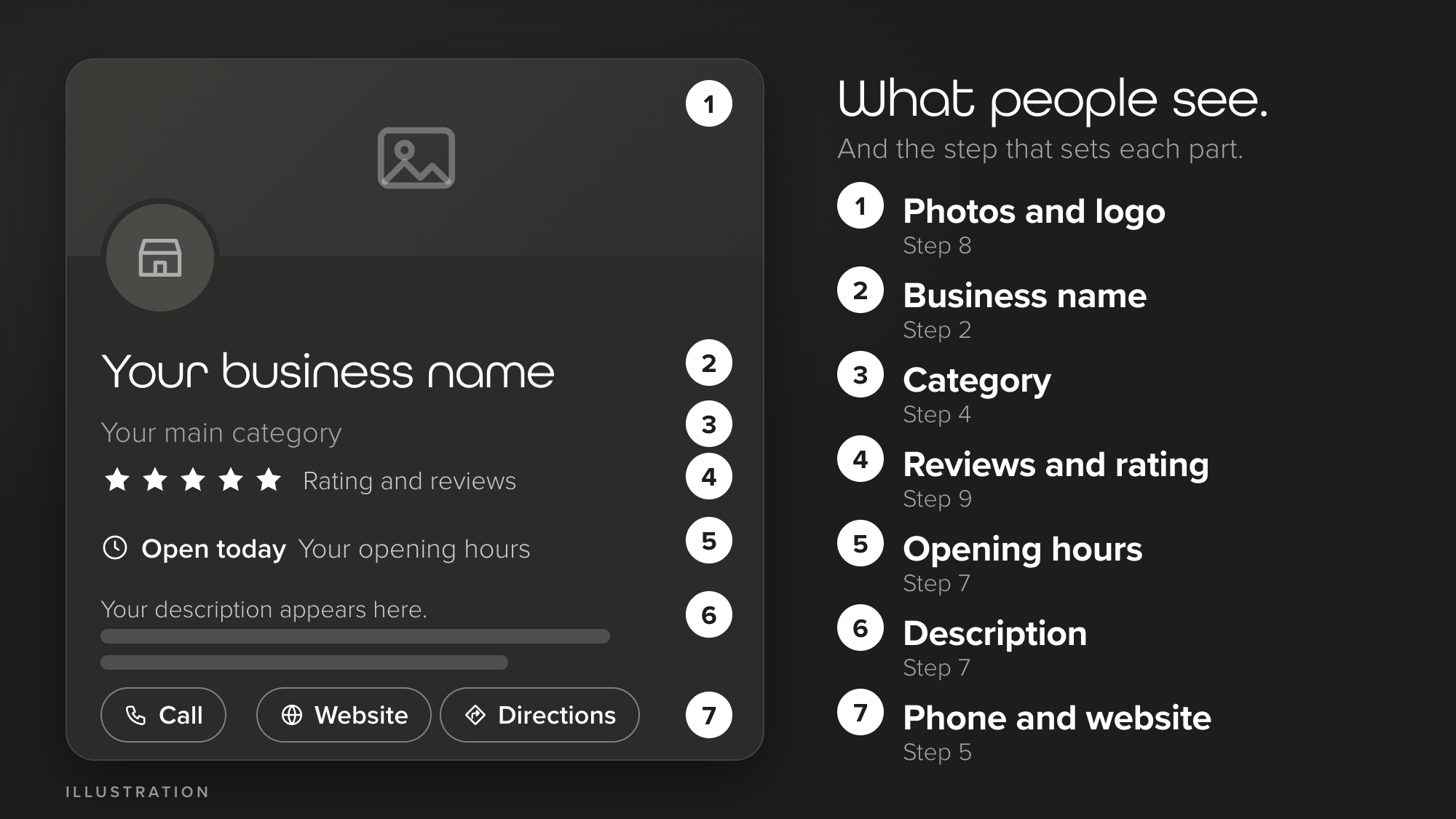
Step 1: Check whether your business is already on Google
Search for your business name and town on Google Maps first. Many businesses already have a profile, started by Google or by a customer, so you may only need to claim it.
- The profile exists and nobody has verified it. Open it in Google Maps, select Claim this business, then Manage now.
- It has been verified by someone else. If you are allowed to manage the business, ask the current owner for ownership.
- There is no profile. Go to step 2.
Google’s guidelines say not to create more than one profile for each location, so do not start a second one.
Step 2: Add your business name
Go to business.google.com/add and select Add your business to Google. Then follow the prompts, starting with your business name.
Use the real name people see on your signage, website and stationery. Do not add a slogan, keywords, your phone number, your web address, your opening hours or the area you cover. Do not type it all in capitals or add endings such as Ltd. Google says unnecessary extras in the name could get your profile suspended.
- Right: Green Street Dental
- Wrong: Green Street Dental | Best Dentist In Chester | Call Now
Step 3: Add your address or service area
Google asks whether customers visit you at an address, and whether you also travel to them.
- Customers visit you (a shop, clinic or office): enter your full address and check that it meets Google’s guidelines.
- You travel to customers: you can hide your address and list the area you cover instead. Google says businesses that work this way should generally hide their address. Keep the area realistic. Google says it should not stretch further than about 2 hours’ driving from your base, unless a larger area suits your business.
Google will not accept a virtual office, or a P.O. box or mailbox at a remote location. Do not put keywords or web addresses in the address lines. A co-working space only qualifies with clear signage, face to face customer service during business hours and your own staff on site.
Step 4: Choose your categories
Your main category tells Google what your business is. Choose the one from Google’s list that best describes your core business. You can add up to 9 more, but Google asks you to use as few as possible.
A simple test: finish the sentence “This business is a…”. If a category describes something your business has rather than what it is, leave it out. Do not use categories as a place for keywords.
Step 5: Add your phone number and website
Add a phone number that your business controls. Use a local number rather than a call centre if you can, and do not use premium rate numbers. You can add up to 2 more numbers, but not fax numbers.
For your website, link to your own site. Google does not allow links that send people somewhere else, including a social media page. Keep your name, address and phone number the same everywhere they appear online. Our guide to name, address and phone number consistency explains why.
Step 6: Verify your business
Verification shows Google that you are allowed to manage the business. Until you verify, your photos and videos will not show. Google decides which options you see, based on your business type, region and opening hours, so you may not see all of these.
| Method | What to know |
|---|---|
| Phone or text | Google sends a code to your business number. You must be able to answer the call or read the text, because automated phone systems cannot receive the code. |
| Google emails you a link to follow. | |
| Postcard | Google posts a 5 digit code to your business address. Most codes arrive within 14 days and they expire after 30 days. |
| Video recording | You record a video for Google to review. It is only offered if your business is eligible. If it is rejected, select Review issues and follow the steps. |
| Live video call | A Google support representative guides you through a call where you show your location and proof that you manage the business. It is only available during your location’s business hours, and not for every business. |
| Search Console | Google says it can verify a profile instantly in some cases, for example if you have verified your website in Google Search Console. |
If you choose a postcard, do not change your business name, address or category while the code is in the post, and do not ask for a new code, because that cancels the first one. Google never asks for your code, so do not share it, even with the people who manage your profile.
If you see Get verified again, Google could not complete the check. Try again or choose another method. If you cannot verify at all, contact Google support.
Step 7: Add your hours, description and services
To edit your profile, go to business.google.com and select Edit profile. On a phone, open the Google Maps app, tap Business, then Edit profile, and tap Save when you are done. Google reviews edits before they go live.
- Hours. Add your regular customer-facing hours, and special hours for bank holidays and other changes. If you work by appointment only, or your times change from day to day, Google’s guidelines say not to list hours.
- Description. You have up to 750 characters, including spaces. Say what you offer, what makes you different and how long you have been in business. Leave out web addresses and code, and focus on your business rather than promotions, prices or sales. Google does not say how much shows before people tap for more, so put the most important words first.
- Services. If you see a services or menu section, fill it in and keep the prices accurate. It is not available for every business.
- Attributes. These tell customers more, such as whether you have parking or Wi-Fi.
- Opening soon? You can enter an opening date up to a year ahead. It appears on Google 90 days before.
Step 8: Add photos and videos
Start with your logo and a cover photo. Then add photos of your premises, inside and out, your team and your work. An outside photo helps customers recognise your business.
- Photos: JPG or PNG, between 10 KB and 5 MB. Google recommends 720 by 720 pixels, with a minimum of 250 by 250.
- Quality: in focus, well lit, and true to life, without heavy filters or big edits.
- Videos: up to 30 seconds, up to 75 MB and 720p or higher.
New uploads can take 24 to 48 hours to appear, and the newest show first. If your logo does not appear, check that your profile has a name, address, category, phone number and opening hours.
Step 9: Ask for reviews and reply to them
Customers need a Google Account to leave a review. The easiest way to ask is to share a Google link or QR code. Google explains how to create one.
Never offer a discount or a free gift in return for a review. Google calls this strictly prohibited, and the same goes for rewarding people for changing or removing a negative review. In the UK, fake reviews and hidden incentivised reviews are also banned by law.
When you reply, be polite, professional and short. Skip the generic thank you and keep it conversational, not promotional. With a negative review, acknowledge any mistake, say what you can and cannot do, use the reviewer’s name and never share their private details. For more, read our guide to getting more Google reviews and our post on Google’s crackdown on fake feedback.
How Google decides which profiles to show
Google says local results are mainly based on three things:
- Relevance: how well your profile matches what someone is searching for.
- Distance: how far your business is from the person searching.
- Prominence: how well known your business is. Google links this to the number of websites linking to you, and to your reviews and ratings.
You cannot pay for a better local ranking. What you can do is verify your profile, fill in every detail accurately, keep your hours up to date, add photos and reply to reviews. That is exactly what the nine steps cover. If you want a hand with the rest, talk to our SEO team, or see our Google Business Profile management service.
Mistakes that cause problems
- Adding keywords, slogans or Ltd to your business name.
- Using a virtual office, P.O. box or mailbox as your address.
- Changing your name, address or category while a postcard code is in the post.
- Asking for a new code before the first one arrives.
- Offering rewards for reviews.
- Linking your website button to a social media page.
- Creating a second profile for the same location.
Keep your profile up to date
A profile is not something you set and forget. Update your hours for bank holidays, add new photos, reply to reviews and share updates, offers and events as posts. A complete, accurate profile is more likely to appear in local results, and Google says verifying and keeping your details current both help.
Your Google Business Profile setup checklist
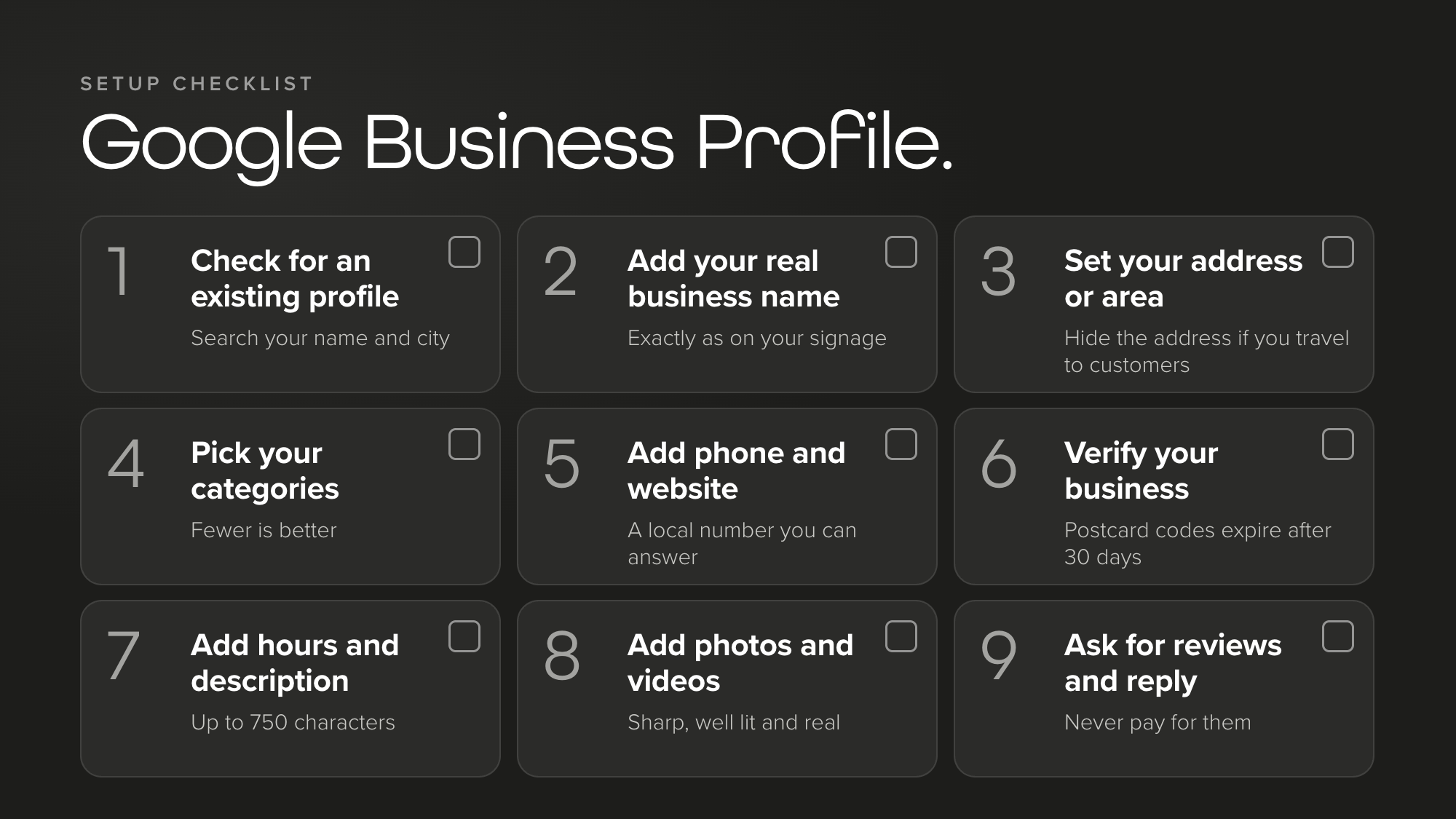
Google Business Profile questions, answered
Is a Google Business Profile free?
Yes. Google says you can add or claim your business at no charge.
How long does Google Business Profile verification take?
It depends on the method. If Google posts you a code, most codes arrive within 14 days and they expire after 30 days. Once you have finished verifying, Google says its review can take up to 5 business days.
Can I set up a Google Business Profile without a shop or office?
Yes, if you travel to your customers. You can hide your address and list the area you cover instead. A virtual office, or a P.O. box or mailbox at a remote location, is not eligible.
What should I put in my Google Business Profile description?
You have up to 750 characters, including spaces. Say what you offer, what makes you different and how long you have been in business. Leave out web addresses and code, and focus on your business rather than promotions, prices or sales.
Can I pay to rank higher on Google Maps?
No. Google says there is no way to request or pay for a better local ranking. Advertising is separate. Google looks at how well your profile matches the search, how far you are from the person searching, and how well known your business is.
The takeaway
Setting up a Google Business Profile is free and takes nine steps. Get the basics right: the real name, an honest address, the right categories, a proper verification and real photos and reviews.
If you would rather have someone do it for you, or you want a second opinion on a profile you already have, our free digital presence audit is a good place to start.
Sources
- Google Business Profile Help: Create a Business Profile
- Google Business Profile Help: Verify your business
- Google Business Profile Help: Guidelines for representing your business
- Google Business Profile Help: Edit your Business Profile
- Google Business Profile Help: Manage your photos and videos
- Google Business Profile Help: Tips to get more reviews
- Google Business Profile Help: Tips to improve your local ranking
- Competition and Markets Authority: fake reviews guidance
Staunton Rook is a full-service marketing agency based in Chester, working with hospitality businesses, professional services firms and consumer brands across the UK.